Open a folder
How to open
After launching, open a folder by either:
- Menu bar → "Open Folder…"
- Drag and drop a folder onto the bridge-lite window
What happens on open
- bridge-lite recursively scans the folder for image files
- RAW and JPG files are automatically paired (stem name → EXIF timestamp → pHash)
- Thumbnails are generated and cached
Subsequent opens use the cache and are significantly faster.
Supported formats
| Category | Formats |
|---|---|
| JPEG | .jpg / .jpeg |
| RAW | .arw (Sony) / .cr2 / .cr3 (Canon) / .nef (Nikon) / .raf (Fujifilm) / .orf (Olympus) / .pef (Pentax) / .dng |
| Developed | JPEG or TIFF files linked by stem name to a RAW |
Cancelling a scan
Folders with around 500 photos scan almost instantly. With 1,000 or more photos, the scan may take longer and the app may feel slower.
To cancel a scan, press the button in the bottom-left corner of the window.
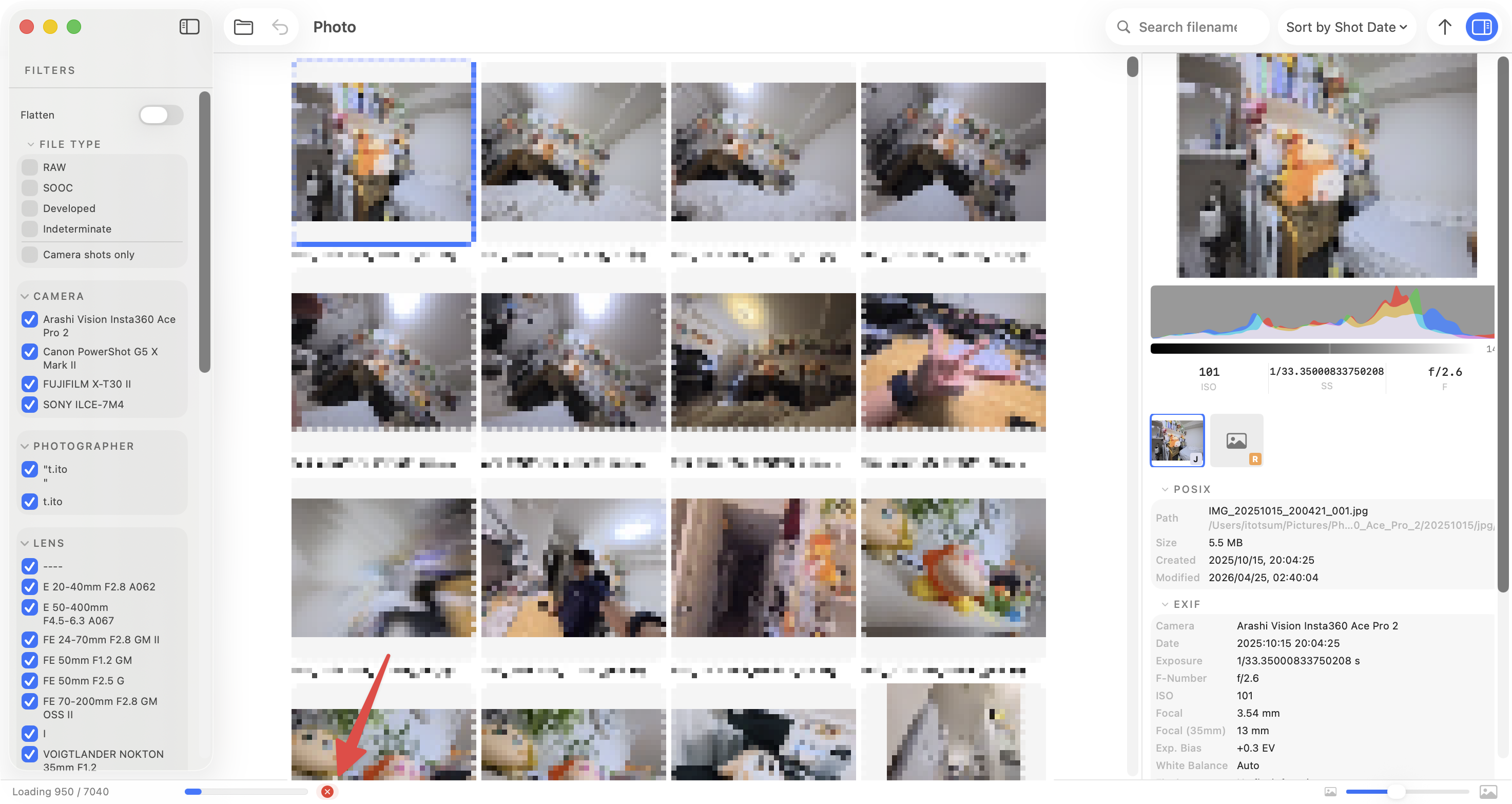
The bottom-left area also shows a seekbar with two values:
- Photos found — total number of images discovered in the folder
- Thumbnails loaded — number of photos whose thumbnails have finished generating
Opening from a memory card
Since BridgeLite never modifies files, it is safe to open folders directly from a mounted memory card or network drive.