Filters
The filters in the left sidebar let you narrow down the photos displayed in the grid. The toggle at the top of the panel also enables flat view, which disables grouping entirely.
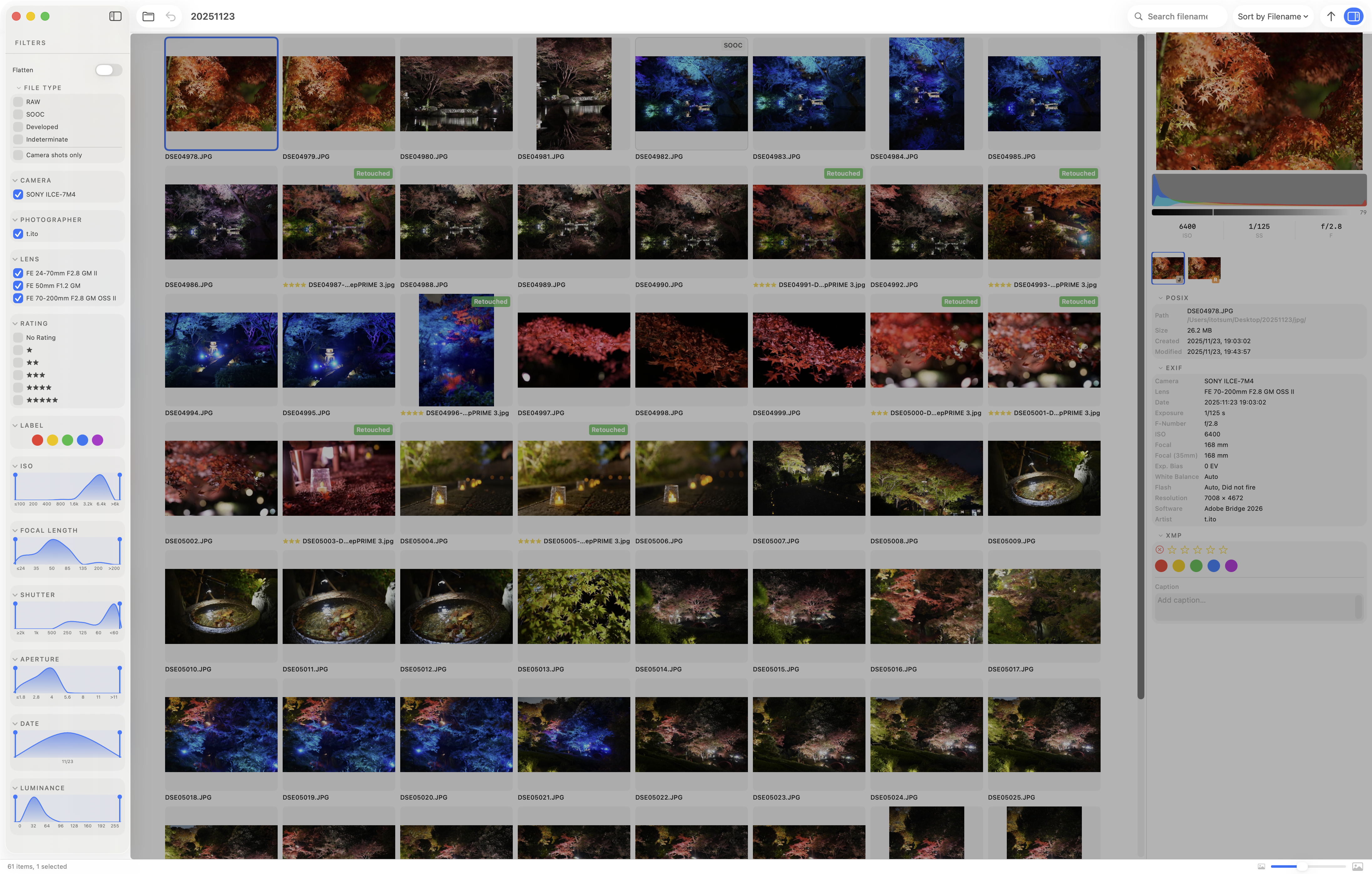
FILE TYPE
A concept unique to bridge-lite, which is built around grouping. This filter controls which file type becomes the representative photo of each group.
| Type | Description |
|---|---|
| SOOC | In-camera JPEG (Straight Out Of Camera) |
| RAW | RAW file |
| Developed | JPEG / TIFF exported from Lightroom or similar |
| Indeterminate | Files that cannot be classified into any of the above |
Only checked types are shown as group representatives. When multiple types are checked, the priority order Developed > SOOC > RAW determines which type appears.
Camera only hides photos that have no EXIF data (e.g. screenshots).
Example
Say you have 10 photos — 5 that look great straight out of camera, and 5 you want to develop. After importing the developed files into the folder, checking both SOOC and Developed lets you view all 10 photos at once: the developed version for those 5, and the SOOC for the rest.
Metadata filters (checkboxes)
Filter by EXIF metadata attached to your photos.
| Filter | Description |
|---|---|
| Camera | Filter by camera model |
| Photographer | Filter by photographer |
| Lens | Filter by lens |
| Rating | Filter by star rating |
| Label | Filter by label |
Metadata filters (histograms)
Filter by numeric ranges derived from EXIF metadata. Each filter displays a histogram of the distribution — useful not only for filtering but also for understanding your own shooting tendencies (e.g. which focal lengths you use most).
| Filter | Description |
|---|---|
| ISO | Filter by ISO value |
| Focal length | Filter by focal length |
| Shutter speed | Filter by shutter speed |
| Aperture | Filter by aperture (f-number) |
| Date & time | Filter by shooting date and time |
| Saturation | Filter by saturation |
Other operations
Collapsing filters
Click the arrow on the right side of any filter header to collapse or expand it. Folding away filters you don't need keeps the sidebar tidy.
Reordering filters
You can change the order of filters in the Settings screen. Moving your most-used filters to the top makes them easier to reach.